nuntio: a GPU-rendered terminal, written in Rust
AI use
With assistance
Model: Claude Opus 5.5
- Issued
- Extent
- 13 min read · 2646 words
- By
- Felix Itzenplitz
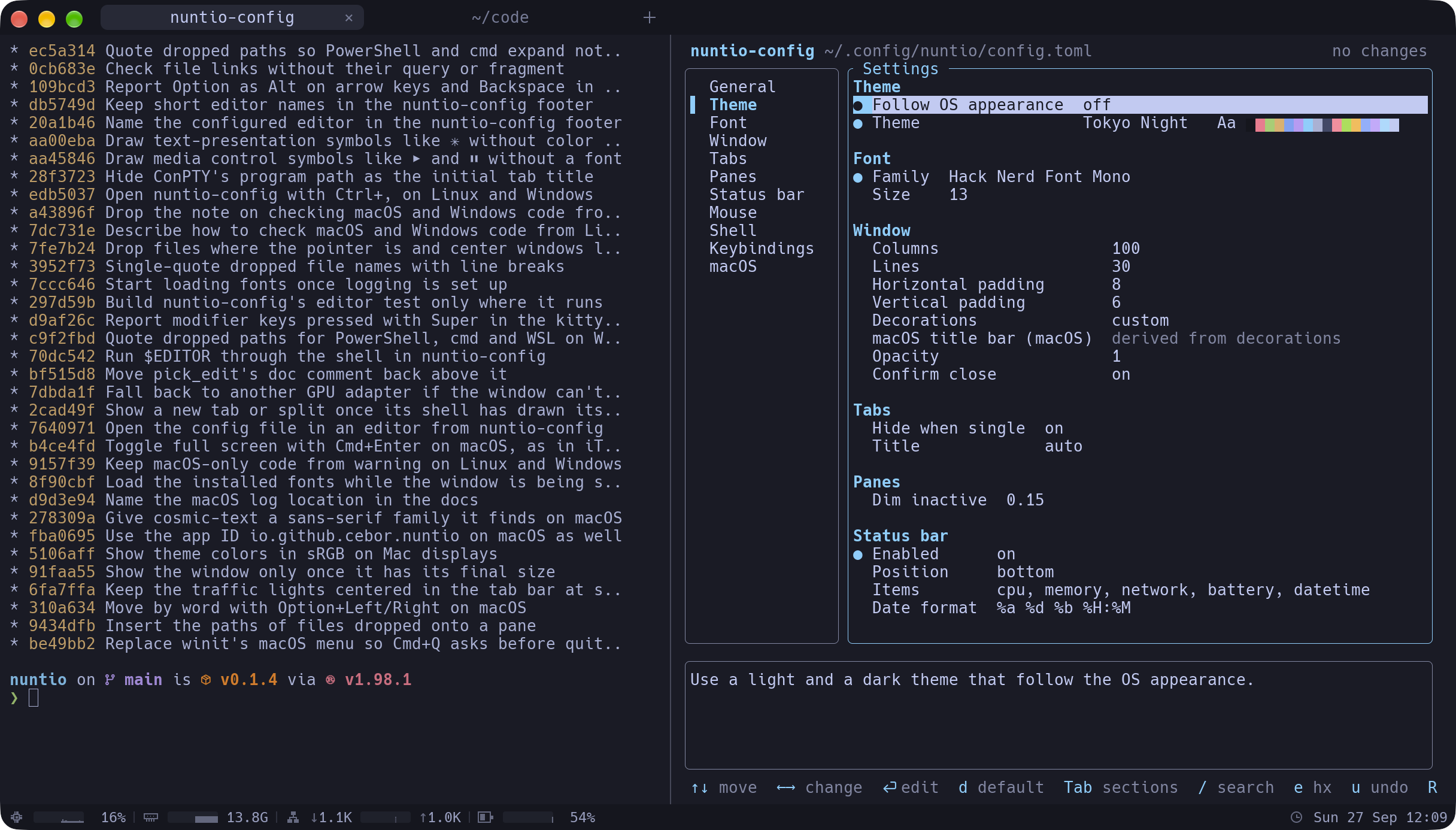
nuntio-config on the right, the status bar along the bottom.Contents
I spend my days switching between a Mac and Linux machines, and what I want from a terminal has stayed the same for years: one window, tabs, split panes, inactive panes dimmed so you can see where you’re typing, a status bar with a few system graphs, and defaults good enough that I rarely open the settings. On the Mac, iTerm2 has given me that for a long time. On Linux I have never found anything that feels like it.
So I built it. nuntio is a GPU-rendered terminal emulator. It started on Linux and now runs just as well on macOS, with Windows supported too. It is written entirely in Rust and configured with a single TOML file that reloads as you type. The name comes from Latin nuntiare: to announce, to report back. That seemed right for a program whose whole job is showing you what another program has to say.
Source is at
github.com/cebor/nuntio
(opens in a new window)
, and the website is
cebor.github.io/nuntio
(opens in a new window)
. Version 0.1.5 has packages for Debian/Ubuntu, an AppImage, a tarball, a universal macOS .dmg and a Windows .zip. A Windows installer is on main and comes with the next release.
Why another terminal
Linux has no shortage of terminals, and several of them are excellent. I tried them all again before I started, and each one is good at something:
| Terminal | What it gets right | What I missed |
|---|---|---|
| Alacritty | Fast, minimal, GPU-rendered | No tabs or splits, on purpose. You bring tmux. |
| Kitty | Fast, layouts, very scriptable | Its own ways of doing things: kittens, layouts, remote control |
| WezTerm | Tabs, splits, a multiplexer built in | The config is a Lua program, not a settings file |
| Ghostty | Native feel, tabs and splits | Deliberately small, no status bar |
| GNOME Terminal, Konsole | Integrated with the desktop | Tied to their desktop, and not GPU-rendered |
None of that is a flaw. They are different programs with different goals. What I wanted was a specific combination: tabs and splits without a multiplexer, dimmed inactive panes, a status bar out of the box, the keyboard shortcuts I’m used to, a config I can edit without learning a programming language, and a program that works fine with no config at all. I couldn’t find all of that in one package.
On macOS, nuntio uses the same shortcuts as iTerm2. On Linux and Windows most of them add Shift, so that plain Ctrl combinations still reach the shell: Ctrl+Shift+D splits side by side, Ctrl+Shift+T opens a tab. nuntio also reads .itermcolors color schemes directly, alongside its own TOML themes.
All of it in Rust
The second thing that mattered to me was that the whole program is Rust, from the window down to the pixels. There is no C++ core with Rust bindings on top, no Electron, no embedded scripting language. Each layer is a Rust crate:
| Layer | Crate |
|---|---|
| Window and events | winit |
| GPU (Vulkan, Metal, DX12) | wgpu |
| VT parsing, grid, scrollback, PTY | alacritty_terminal |
| Font discovery, shaping, fallback | cosmic-text |
| Config | serde, toml, toml_edit, notify |
| Config editor | ratatui |
| System stats for the status bar | sysinfo, starship-battery |
| Platform glue (macOS menu, Win32) | objc2, windows-sys |
The terminal emulation itself comes from alacritty_terminal, the core of Alacritty published as a library. A correct VT parser is years of edge cases, and I had no interest in reinventing it. Everything around it is nuntio’s own: the window, tabs, the split tree, the renderer, input encoding, config and UI.
The project is a Cargo workspace:
crates/
  nuntio             binary: event loop, window, tabs,
                     split tree, input, tab bar, find bar
  nuntio-term        alacritty_terminal wrapper: PTY and
                     IO thread per pane, screen snapshots
  nuntio-render      wgpu renderer
  nuntio-config      schema, loading, validation, themes,
                     editing in place, file watcher
  nuntio-config-tui  the nuntio-config editor (ratatui)
xtask                icons, packaging, changelog
Even packaging is Rust: cargo xtask package builds a release and writes the .deb, AppImage, .dmg or .zip for the host, and the release workflow runs the same command for every tag.
A few design decisions I’d make the same way again:
- One pipeline draws everything. The renderer has a single instanced-quad pipeline. Cell backgrounds, glyphs from two atlases (grayscale and color emoji), the tab bar, dividers and the status bar are all rectangles with a color and maybe a texture coordinate.
- Box-drawing characters are drawn, not rendered from the font. Characters in the range U+2500 to U+259F are generated procedurally, so the borders of
htopor aratatuiapp meet without gaps at any font size. - The terminal lock is held only for a copy. Every pane has its own PTY thread. To draw, the main thread takes a snapshot of each visible pane and lets go of the lock right away, so a pane spewing output never blocks rendering.
- Idle means idle. nuntio only redraws when something changed. The event loop waits instead of polling, and cursor blinking is a timer. An idle window uses close to 0% CPU.
- Logic stays away from the GPU. Tabs, the pane tree, tab bar layout, key and mouse encoding and config parsing know nothing about windows or GPUs, which is why they can be unit-tested. One integration test spawns a real
/bin/sh.
In about 22,000 lines, unsafe appears only where nuntio talks to an operating system directly. On macOS that means the AppKit menu, the sRGB color space of the Metal surface, and libproc to find a pane’s foreground process. On Windows it covers rounded window corners, the DLL search path, the pointer position for dropped files and the registry lookup for installed WSL distributions. Each of these calls is behind a cfg for its platform and carries a SAFETY comment. The cross-platform code, from the split tree to the input encoding, has none.
Configuration, with a terminal UI
nuntio reads ~/.config/nuntio/config.toml, and the path is the same on every platform, so one dotfiles repo covers all three. Without a file it runs on the defaults. A typical config is short:
[font]
family = "JetBrains Mono"
size = 14.0

# Follow the OS appearance
[theme]
light = "Solarized Light"
dark = "Tokyo Night"

[panes]
dim_inactive = 0.2
Saving the file applies it immediately. If you make a mistake, a banner in the window shows the error with its line number and the previous settings stay active, so a typo never leaves you with a broken terminal. Unknown keys like famliy get a warning banner, and everything else in the file still applies.
That much you know from other terminals. The part I like most is nuntio-config. Run it in any nuntio tab, or press Ctrl+, (Cmd+, on macOS) to open it in a new one, and you get a terminal UI for the same file:
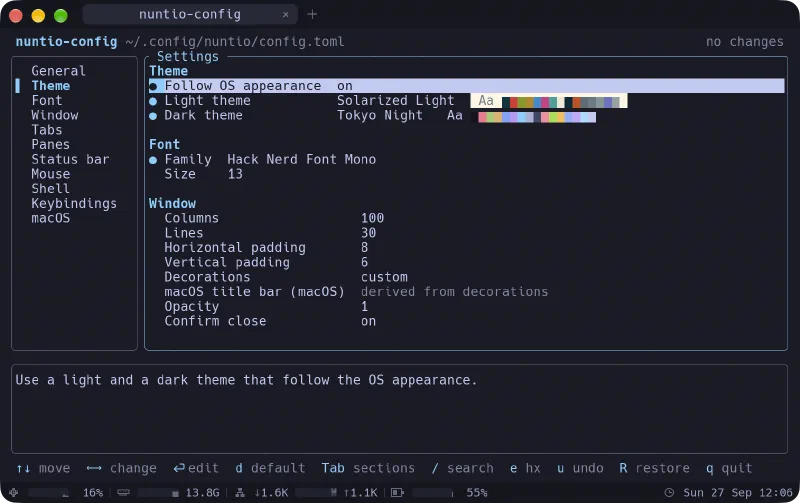
● marks what is set in the file.It only ever offers valid values. A choice lists its variants, the theme picker lists your installed themes with a color swatch, the font picker lists your monospace fonts, the shell picker lists the installed shells (and, on Windows, your WSL distributions), and a number stays within its range. Moving through themes or fonts previews each one live in the window around you. Enter keeps it, Esc goes back.
There is no “Apply” button, because there doesn’t need to be one. Every valid change is written to the file right away, and nuntio’s hot reload does the rest: hot reload is the preview. A change that would make the file invalid is refused, with the reason. u undoes, and R restores the file as it was when you started the editor.
It also doesn’t take your file away from you. Editing goes through toml_edit, so comments and layout survive. Resetting a setting to its default removes it from the file instead of writing the default in. The file is replaced atomically, through symlinks, so a dotfiles setup keeps working. If you edit the file in another editor while nuntio-config is open, it rereads the file before its next change. And when you do want the raw TOML, e opens it in $VISUAL or $EDITOR, right from the UI (the footer names the one it will use). nuntio-config rereads the file once your editor exits, and u undoes the whole edit.
Keybindings are the one place where it asks you to type. You write the combination as text, like Ctrl+Shift+Enter, because a terminal can’t reliably report every key combination to a program running inside it. The editor checks the text as you type and warns if the combination is already bound.
Two details under the hood make this work:
- The command only exists inside nuntio. Packages install
nuntio-confignext to nuntio rather than on the globalPATH. When nuntio starts a pane, it puts that directory in front of the pane’sPATHand setsNUNTIO_CONFIGto the config file it actually uses, including one passed with--config. So the editor always edits the file of the terminal you’re sitting in. - Every setting is described exactly once.
schema.rsinnuntio-configlists each setting with its section, kind, allowed values and help text. The editor is built from it, and tests keep it in sync with theConfigstruct and withdocs/config.md, so a new option can’t show up in the file format without also showing up in the editor and the docs. The editor’s logic sits behind a smallStoretrait and is tested without a terminal or a file.ui.rsonly draws.
The status bar
The other thing I missed every day on Linux is the status bar: a slim strip with a few live graphs, so you notice a runaway build without opening htop. nuntio’s is off by default. Turn it on and it sits at the bottom of the window (or just below the tab bar):

CPU, memory and network each get a sparkline of the last minute and their current value. On laptops the battery gets a graph too, covering about the last hour at one bar per minute. The date and time come last. The icons aren’t font glyphs: like everything else in the window, they’re drawn from rectangles by the same quad pipeline. Everything is set in [status_bar], or in its section in nuntio-config:
[status_bar]
enabled = true
position = "bottom"   # or "top", below the tab bar
items = ["cpu", "memory", "network", "battery", "datetime"]
datetime_format = "%d.%m.%Y %H:%M"
items sets both the selection and the order. Between them you can put springs, "<->": flexible gaps that share the space the items don’t need.
# The clock centered, the battery at the right edge
items = ["cpu", "<->", "datetime", "<->", "battery"]
Without a spring, the last item is pinned to the right edge and the others fill in from the left. When the window gets too narrow, items drop off from the end rather than overlap. In nuntio-config the list is a checklist: Space shows or hides an item, Shift+↑ and Shift+↓ move it, and S adds a spring. A line above the list sketches the resulting bar. And rainbow = true gives each item its own color, spread evenly around the color wheel.
A few details I enjoyed getting right:
It costs nothing while it’s off. Only while the bar is shown does a background thread sample the system, once per second. While the window is minimized or covered by another one, sampling pauses too. Reading the battery is more expensive than everything else combined and the charge changes slowly, so it’s read every 30 seconds. Samples reach the main thread through the same event channel as terminal output, and a redraw happens only when a sample arrives.
Sixty samples per graph. Each graph keeps 60 values in a small ring buffer. That is one minute for CPU, memory and network, and one hour for the battery, which only records one sample every minute:
/// The most recent values of one graph, oldest first.
struct History(VecDeque<f32>);

impl History {
    fn push(&mut self, value: f32) {
        if self.0.len() == HISTORY {
            self.0.pop_front();
        }
        self.0.push_back(value);
    }
}
Network goes both ways. Download grows up from the middle of its graph and upload grows down, so both fit in one sparkline, with the download rate to its left and the upload rate to its right. Only physical interfaces count: loopback and the bridges of Docker or VMs would count the same traffic twice. The scale never drops below 1 KiB/s, so background chatter on an idle machine stays a flat line instead of being blown up into dramatic spikes.
Hidden when irrelevant. On a machine without a battery the battery item simply isn’t there, and rates are formatted to at most four characters (
0K,0.5K,30K,1.2M) so the bar doesn’t jitter as numbers change.
The rest, briefly
- A find bar with incremental search, a match count and a regex mode (
Alt+R). Ctrl+click (Cmd+click on macOS) opens URLs and OSC 8 hyperlinks. Hovering shows where a link leads, and links to programs are never opened.- New tabs and panes open in the current directory of the focused pane, on Linux and macOS.
- Tab titles follow the shell’s title, or the path and foreground process.
- Twenty built-in themes, among them Tokyo Night, Catppuccin, Gruvbox, Nord, One, Rosé Pine and Solarized, and a light/dark pair that follows the OS appearance.
- The
kitty keyboard protocol
(opens in a new window)
, so neovim, helix or fish 4 can tell
Ctrl+IfromTab. - Files dropped onto a pane are typed in as paths, quoted for the shell that runs there, including PowerShell and
cmd. - Pasting several lines where the shell would run them at once asks first, and so does closing a tab in which a program is still running.
nuntio -e htopand--working-directory, and on Linux it registers asx-terminal-emulatorand supportsxdg-terminal-exec.- On Windows,
shell = { wsl = "Ubuntu" }opens every tab straight in a WSL distribution.
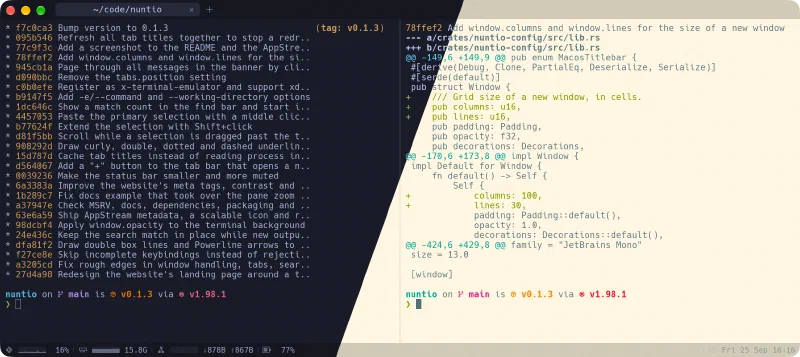
That last one exists because nuntio was largely developed on WSL2. WSLg’s compositor crashes on client-side window decorations, so under WSLg nuntio runs undecorated and its own tab bar provides window dragging, resize edges and the minimize, maximize and close buttons.
Note
Under WSLg, wgpu only gets a software Vulkan driver, so I haven’t published performance numbers from my machine. They would say more about llvmpipe than about nuntio.
What it doesn’t do (yet)
nuntio is at 0.1.5, and some things are missing on purpose:
- One window. Tabs and splits, but no second window yet.
- No ligatures and no inline images. Text is shaped per cell, and none of the image protocols (Kitty, Sixel, iTerm2’s own) are implemented.
- No session restore. Window size, position and open tabs aren’t remembered.
- Unsigned packages. On macOS the first start is blocked. Since macOS 15, right-click → Open no longer gets around that: allow it under System Settings → Privacy & Security → Open Anyway, or run
xattr -dr com.apple.quarantine /Applications/nuntio.app. On Windows, SmartScreen will ask.
Try it
Grab a package from the latest release (opens in a new window) . On Debian or Ubuntu:
sudo apt install ./nuntio_0.1.5-1_amd64.deb
Or build it yourself, which also gets you everything on main. Any current stable Rust will do, and rustup installs it on its own from rust-toolchain.toml. On Linux you need the windowing headers:
sudo apt-get install libxkbcommon-dev libwayland-dev \
  libx11-dev libxcursor-dev libxrandr-dev libxi-dev
git clone https://github.com/cebor/nuntio.git
cd nuntio
cargo run -r
Then press Ctrl+, (or run nuntio-config), go to Status bar and switch it on. The whole configuration reference, with every option and its default, is in
docs/config.md
(opens in a new window)
.
nuntio doesn’t try to beat Kitty or WezTerm at what they do. It’s the terminal I kept wishing I had on Linux, and now I do.