nuntio 0.3.0: herdr and tmux inside the terminal
AI use
With assistance
Model: Claude Opus 5.5
- Issued
- Extent
- 9 min read · 1885 words
- By
- Felix Itzenplitz
- Subject
- rust, terminal, herdr, tmux, open-source
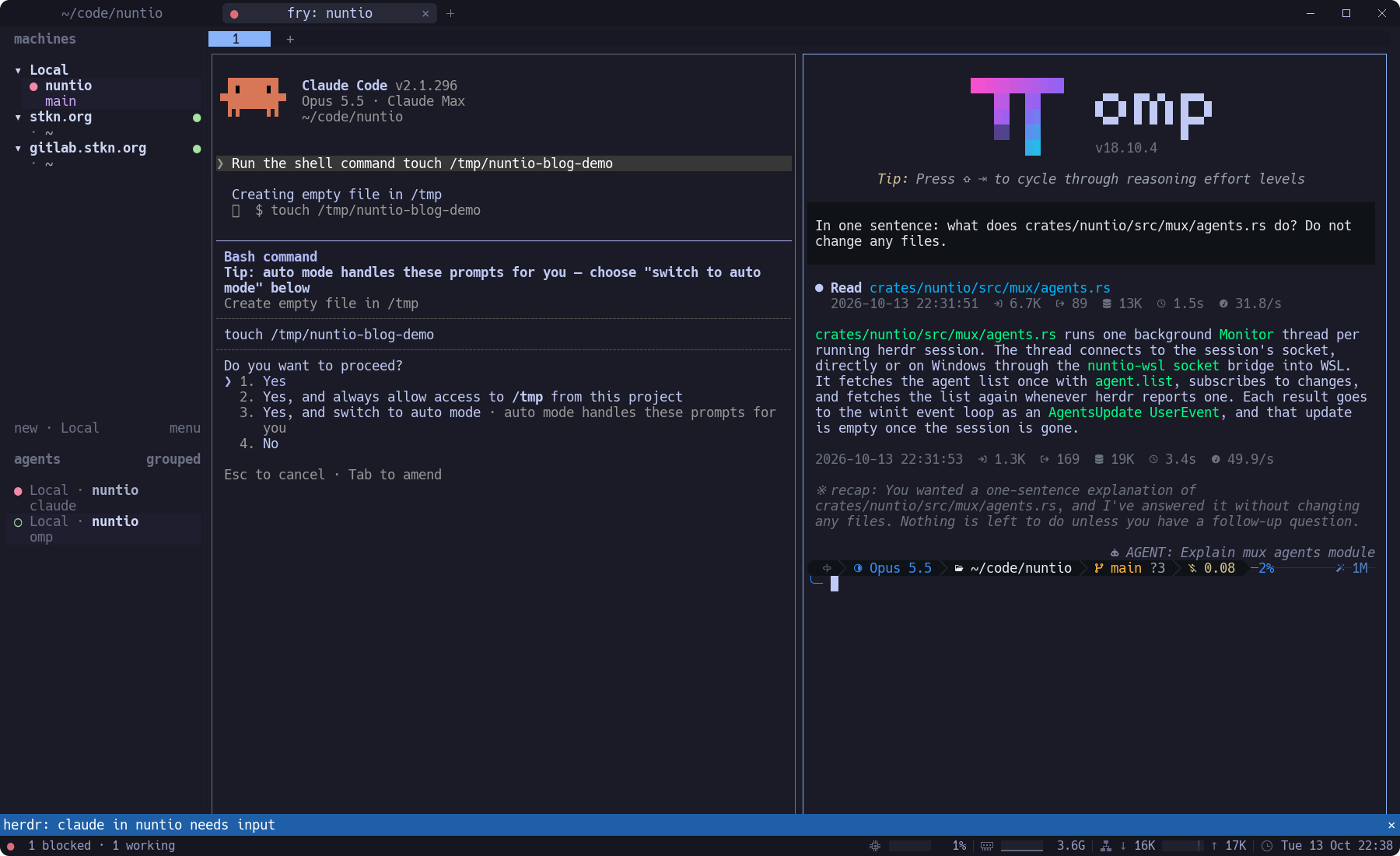
Ctrl+Shift+D: Claude Code waiting for permission on the left, omp on the right.Contents
In September I wrote about
nuntio
, my GPU-rendered terminal in Rust, at version 0.1.5.
nuntio 0.3.0
(opens in a new window)
is out now, and its headline is that it works with herdr and tmux running in its panes.
In that first post I listed “tabs and splits without a multiplexer” as one of the reasons nuntio exists. I still think that’s right for most of what I do. But multiplexers do things a terminal can’t: their sessions outlive the window, and herdr manages coding agents. Run one inside nuntio, though, and you have two layers of splits: nuntio’s and the multiplexer’s. Press nuntio’s split shortcut and nuntio splits its own pane, around the multiplexer, when what you wanted was a split inside it. 0.3.0 is about making the two layers work together.
herdr, briefly
herdr
(opens in a new window)
is a terminal multiplexer for coding agents. It runs agents like Claude Code and omp in its panes and tracks each one’s state: idle, working, blocked (waiting for you) or done. tmux needs no introduction.
Turning it on
Both integrations are off by default, and while they’re off nothing runs:
[herdr]
enabled = true

[tmux]
enabled = true
If you’d rather have nuntio start inside a multiplexer, there’s on_startup. With herdr.on_startup, nuntio starts in herdr’s default session. With tmux.on_startup, it starts in tmux new-session -A -s main. If both are set, herdr wins, and either change applies the next time nuntio starts. If the program can’t be found, a banner says herdr not found; started the shell instead and you get your shell. The program key takes a name or an absolute path, for when it lives somewhere unusual.
Sessions in the shell menu
The shell menu now lists your multiplexer sessions next to the shells. Open it with Ctrl+Shift+Alt+T (Cmd+Opt+T on macOS), a right-click on the + in the tab bar, or a click on the shell status bar item.
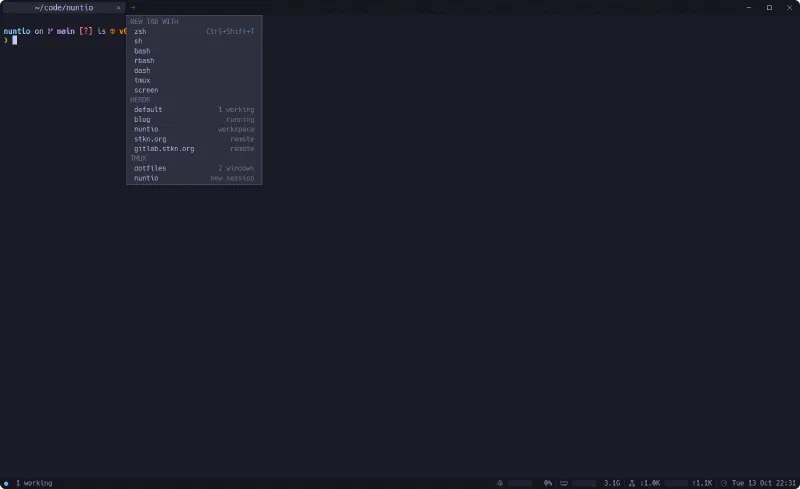
Each multiplexer gets a section headed herdr or tmux. On Windows, each WSL distribution gets its own, like herdr · Ubuntu or tmux · Ubuntu. Windows has no native tmux, so tmux there is WSL-only. A section holds:
- Running sessions. For herdr, the detail is its agent summary, or
running. For tmux it isN windows, plus· attachedif a client is attached. - A project entry. The project is the Git repository around the focused pane’s directory (
git rev-parse --show-toplevel), or that directory itself outside a repository. For tmux, the entry runstmux new-session -A -s <name> -c <dir>, with.and:in the name replaced by_. If another directory already has that name, the session becomesparent-name, then-2,-3, and a session that was already started in that directory is reused. For herdr, the entry focuses the project’s workspace in the default session, or creates it withherdr workspace create --cwd … --label … --focus. - Remote machines saved with
herdr machine add, opened asherdr --remote <target>, with the detailremote · <summary>.
If a session is already open in a tab, choosing it switches to that tab instead of opening a second one.
Finding the programs took more care than I expected. A nuntio started from a desktop launcher gets a short PATH, which often lacks exactly the directories herdr lives in. So nuntio looks for them the way a login shell would: command -v first, then $SHELL -lc, then ~/.local/bin, ~/.cargo/bin, ~/.nix-profile/bin, /opt/homebrew/bin, /usr/local/bin and /usr/bin. The sessions are refreshed every 60 seconds in a background thread and whenever the menu opens, and every command gets a 5-second timeout.
nuntio’s shortcuts, the multiplexer’s keys
This is the part I wanted most. In a pane running herdr or tmux, nuntio’s shortcuts for a new tab, splitting in both directions, closing a pane, moving focus, resizing and zooming send that tool’s own key sequence for the same action. Ctrl+Shift+D in a herdr pane splits herdr’s pane, not nuntio’s, which is how the left and right halves of the cover image came about. Switching and closing nuntio’s own tabs is never forwarded, so you can always leave the multiplexer’s tab.
nuntio doesn’t assume the default keys; it reads the ones you actually use. For herdr, that’s the [keys] table in ~/.config/herdr/config.toml. Without one, herdr’s defaults apply: the prefix ctrl+b, then c for a new tab, v to split side by side, minus to split top and bottom, x to close, h/j/k/l to move focus and z to zoom. Resizing has no default key in herdr.
For tmux, nuntio asks the running server, with tmux show-options -gv prefix and tmux list-keys -T prefix, and looks for the commands it knows:
| tmux command | nuntio action |
|---|---|
new-window | new tab |
split-window -h | split side by side |
split-window | split top/bottom |
kill-pane (also inside confirm-before) | close pane |
select-pane -L/-R/-U/-D | focus |
resize-pane -L/-R/-U/-D | resize (bindings marked -r preferred) |
resize-pane -Z | zoom |
So a remapped prefix or rebound keys just work. Without a running server, tmux’s defaults apply.
The keys are encoded for the pane’s current keyboard mode, so a multiplexer that turned on the kitty keyboard protocol gets CSI-u sequences.
Note
0.3.0 itself gets this wrong for herdr. herdr turns on the kitty keyboard protocol, and 0.3.0 sent the key after the prefix as plain text, in the same write as the prefix. herdr then waits in prefix mode and never sees the key. The
fix
(opens in a new window)
, which sends every forwarded key as a kitty escape code, is on main and comes with the next release. tmux isn’t affected. The screenshots in this post are from main.
If the tool has no binding for an action, nuntio does it itself. A nuntio split of a multiplexer pane runs your default shell rather than another client, because a second client of the same multiplexer would only mirror the first.
How does nuntio know a pane runs a multiplexer? Either it opened the pane itself, from the menu or through on_startup, or the pane’s foreground process is named herdr… or tmux…. So typing tmux attach in an ordinary shell works too, on Linux and macOS. On Windows the same works in WSL panes, through the foreground-process reports that nuntio-wsl sends since 0.3.0.
If you’d rather keep nuntio’s shortcuts for nuntio, each tool has a switch: forward_actions = false.
herdr’s agents, in nuntio’s window
herdr knows what its agents are doing, and 0.3.0 shows that in nuntio too. For every running herdr session, nuntio opens a monitor on herdr’s socket: it fetches the agents with agent.list and then subscribes with events.subscribe. herdr pushes every change, so nothing is polled.
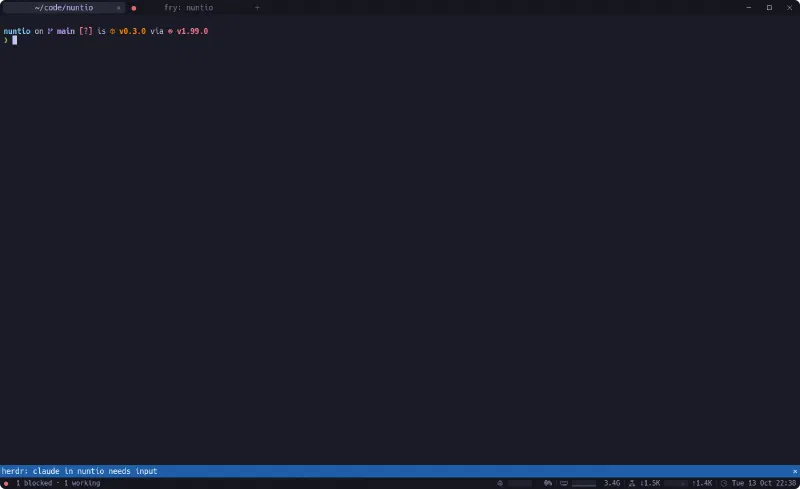
● on the tab, and 1 blocked · 1 working in the status bar.That information shows up in three places:
The
agentsstatus bar item, for example● 1 blocked · 2 working. It takes the color of the most urgent agent: red (#e06c75) for blocked, green (#98c379) for done, blue (#61afef) for working. Idle agents aren’t counted, and when nothing is left to show the item hides itself. It’s an item like any other:[status_bar] items = ["agents", "<->", "cpu", "memory", "network", "datetime"]The tab showing a herdr session gets a
●in the color of its most urgent agent.A banner,
claude in nuntio needs input, when an agent becomes blocked while its tab isn’t the active one or the window isn’t focused.
The second working agent in the screenshot is the one that wrote most of this post, in my everyday herdr session.
A click on the status item, or the action open_agents_menu, lists all agents as <agent> · <directory>, the most urgent first. Choosing one switches to that session’s tab, or opens it, and runs herdr agent focus <pane>, so you land right in front of the prompt that is waiting for you.
agent_status = false turns all of this off. Remote machines only get their summary in the shell menu, without a live monitor. On Windows, a herdr running in WSL is reached through nuntio-wsl socket, which bridges the Unix socket inside the distribution to nuntio.
Small things that took the longest
Nested herdr. At startup, nuntio removes
HERDR_*,TMUXandTMUX_PANEfrom its own environment. A nuntio launched from a herdr pane would otherwise pass them on to every pane, and herdr refuses to start there with “nested herdr is disabled”.Images inside herdr. herdr passes only Kitty graphics through to its outer terminal, so 0.3.0 reads the Kitty graphics protocol: transmit, place, delete and query. Unicode placeholders, relative placements and animation aren’t implemented. Every pane gets
PI_FORCE_IMAGE_PROTOCOL=kitty, so omp sends Kitty images, and a herdr server started in a nuntio pane hands that on. A herdr server that is still running with the olderiterm2value has to be restarted.Tab titles. herdr titles its terminal from
ui.window_title, which defaults to{hostname}: {workspace}; that is thefry: nuntioin the screenshots. For a tab title that follows the focused herdr pane, put this in herdr’s config and runherdr server reload-config:[ui] window_title = "{terminal_title}"
Also in 0.3.0
There’s a new notes app. It runs as nuntio-apps notes and opens with Ctrl+Shift+N in a new tab or Ctrl+Alt+Shift+N in a split (Cmd+Shift+N and Cmd+Opt+Shift+N on macOS). Notes are plain .md files in notes.directory, which defaults to <data dir>/nuntio/notes. The preview is live: everything is rendered as Markdown except the line the cursor is on. Ctrl+T or a click toggles a todo, lists continue when you press Enter, and Ctrl+O lists the open todos of all notes.
And a few fixes:
- The restore button works in full screen.
- Dragging the tab bar leaves full screen.
- nuntio gets back onto the GPU after a device loss.
- WSLg is detected without
WSL_DISTRO_NAME.
Since 0.1.5
Versions 0.1.6 to 0.2.2 never got a post of their own, so briefly:
- 0.1.6: a Windows installer that needs no admin rights and adds nuntio to the Start menu.
- 0.1.8:
- an opt-in update check;
working_directory;- a switch to turn off GPU acceleration;
- an actions menu in the status bar.
- 0.1.9: the shell menu and
[[profiles]]. - 0.2.0:
- inline images with iTerm2’s OSC 1337;
- WSL panes on Windows run through
nuntio-wslin a real Linux PTY instead of ConPTY. ConPTY stays as the fallback, and on Windows on Arm.
- 0.2.1:
- pasting an image from the clipboard pastes the path of a temporary PNG, which Claude Code and omp attach;
- a tab bar that scrolls, with a list of all tabs.
- 0.2.2: hardening throughout.
Against the first post’s list of what nuntio doesn’t do: inline images are done. Still open are a second window, ligatures, session restore and signed packages. For session restore, herdr and tmux now cover persistence from inside.
Try it
Packages are on the latest release (opens in a new window) . On Debian or Ubuntu:
sudo apt install ./nuntio_0.3.0-1_amd64.deb
There’s also nuntio-0.3.0-x86_64-linux.AppImage and a .tar.gz for Linux, nuntio-0.3.0-macos-universal.dmg for macOS, and nuntio-0.3.0-x86_64-windows-setup.exe or a .zip for Windows. Every [herdr] and [tmux] option is in the
configuration reference
(opens in a new window)
.
I still don’t need a multiplexer for tabs and splits, but now I can use one without fighting it.